
Access help

Account and Gallery Access

Help for signing in, opening invite links, redeeming access codes, and finding the right gallery.

Use this guide before ordering photos. It covers getting into the correct tenant and opening the galleries you are allowed to view.

4
Sections
3
FAQs
2
Fixes
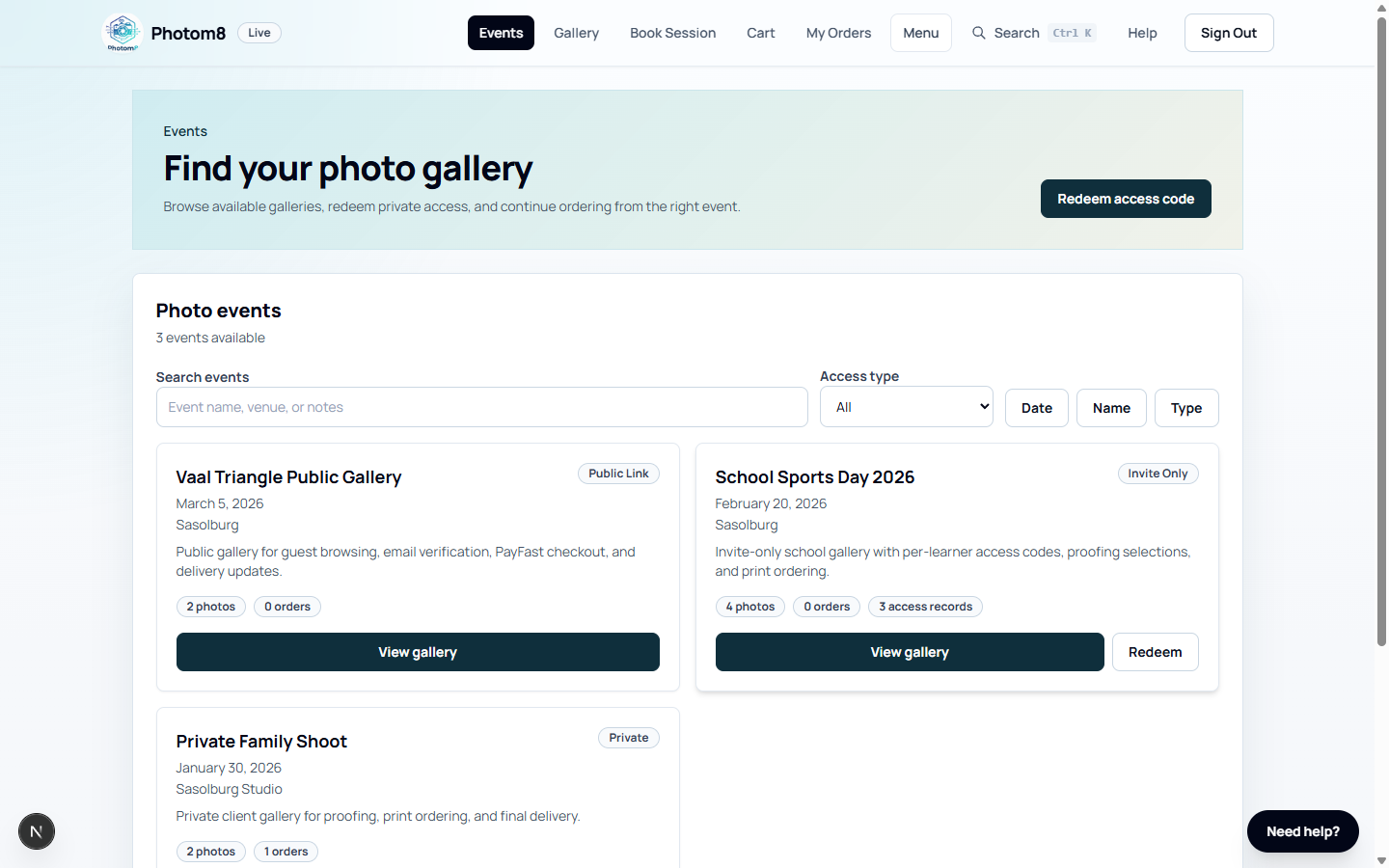
Client events page with available galleries
Events: find accessible galleries, redeem private codes and open the right event.

Sign In To The Correct Tenant

Tenant, identifier and password must all match the account that was invited.

/login

Use the tenant from your invite or studio

Open /login, enter the tenant slug, then sign in with your email address or cell phone number and password.

  • If your invite includes a temporary password, use it once and set a new password when prompted.
  • If Google sign-in is enabled, confirm you are using the same tenant before continuing.
  • If sign-in fails, check the tenant slug before resetting the password.

Use Help only after checking tenant context

Most access problems are caused by being in the wrong tenant, using a different email or using an expired invite.

  • Ask the photographer which tenant slug to use.
  • Use the same email or phone number that received the invitation.
  • Sign out before switching from a staff account to a client account on the same device.

Open Invite Links

Invite links may contain the gallery context so you do not need to search manually.

/events/redeem

Open the link as supplied

Do not edit invite URLs. If sign-in is required, Photom8 sends you back to the invited gallery after login.

  • Expired links need to be resent by the photographer or studio.
  • If the wrong gallery opens, confirm that the invite was sent to the correct email or phone number.

Redeem Access Codes

Invite-only galleries can use codes such as learner, class or event access codes.

/events/redeem

Redeem the code from the photographer

Open Redeem access code from Events, choose or confirm the event when required, and enter the code exactly as supplied.

  • Codes are tenant and event specific.
  • After redeeming, return to Events and open the gallery again.
  • If a code fails, ask the studio to check the event recipient or roster record.

Find Available Galleries

The Events page lists galleries available to the current account.

/events
Events page
Events shows public, private and invite-only galleries with the available actions for each one.

Use the event filters

Search by event name, venue or notes. Use the access type filter to narrow the list.

  • Private events require account access.
  • Invite-only events require an invite or code.
  • Public-link events can be opened from a shared public token.

Troubleshooting

Use these checks when the workflow does not behave as expected.

No events appear.

Likely cause
The account may not have access, the wrong tenant is selected, or the access code has not been redeemed.
What to do
Check tenant slug and account identifier, then redeem the code or ask the photographer to resend access.

The invite opens the wrong page.

Likely cause
The link may be incomplete or the browser may still be signed into another account.
What to do
Sign out, open the original invite again, and ask the studio for a fresh invite if needed.

FAQ

Which details do I need before signing in?

Use the tenant slug from the studio plus the same email address or cell phone number that received the invite.

What should I do when a gallery is missing?

Confirm the tenant slug, sign in with the invited account, then redeem the access code or ask the photographer to resend access.

Can I share my invite link?

Invite links and access codes are intended for the recipient. Ask the studio to invite another person instead of forwarding private access.