
Orders help

Orders, Print Lab, Shipments and Downloads

How clients track paid orders and how staff move orders through production, shipment and delivered downloads.

Use this guide when an order exists and you need to check payment, invoice, production, shipment or download status.

4
Sections
3
FAQs
2
Fixes
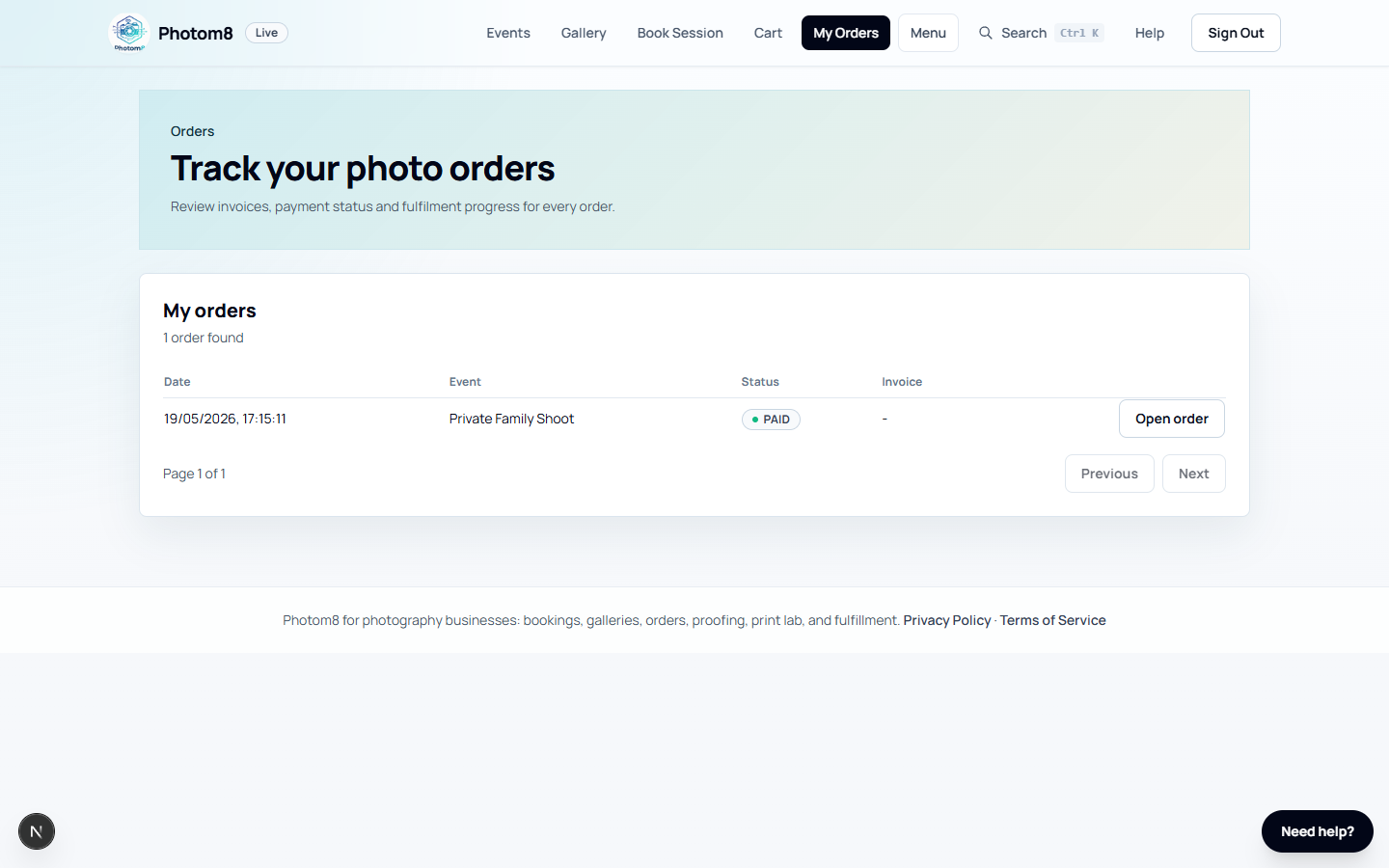
Client orders page
Orders: clients track payment, fulfilment, invoices and delivered downloads.
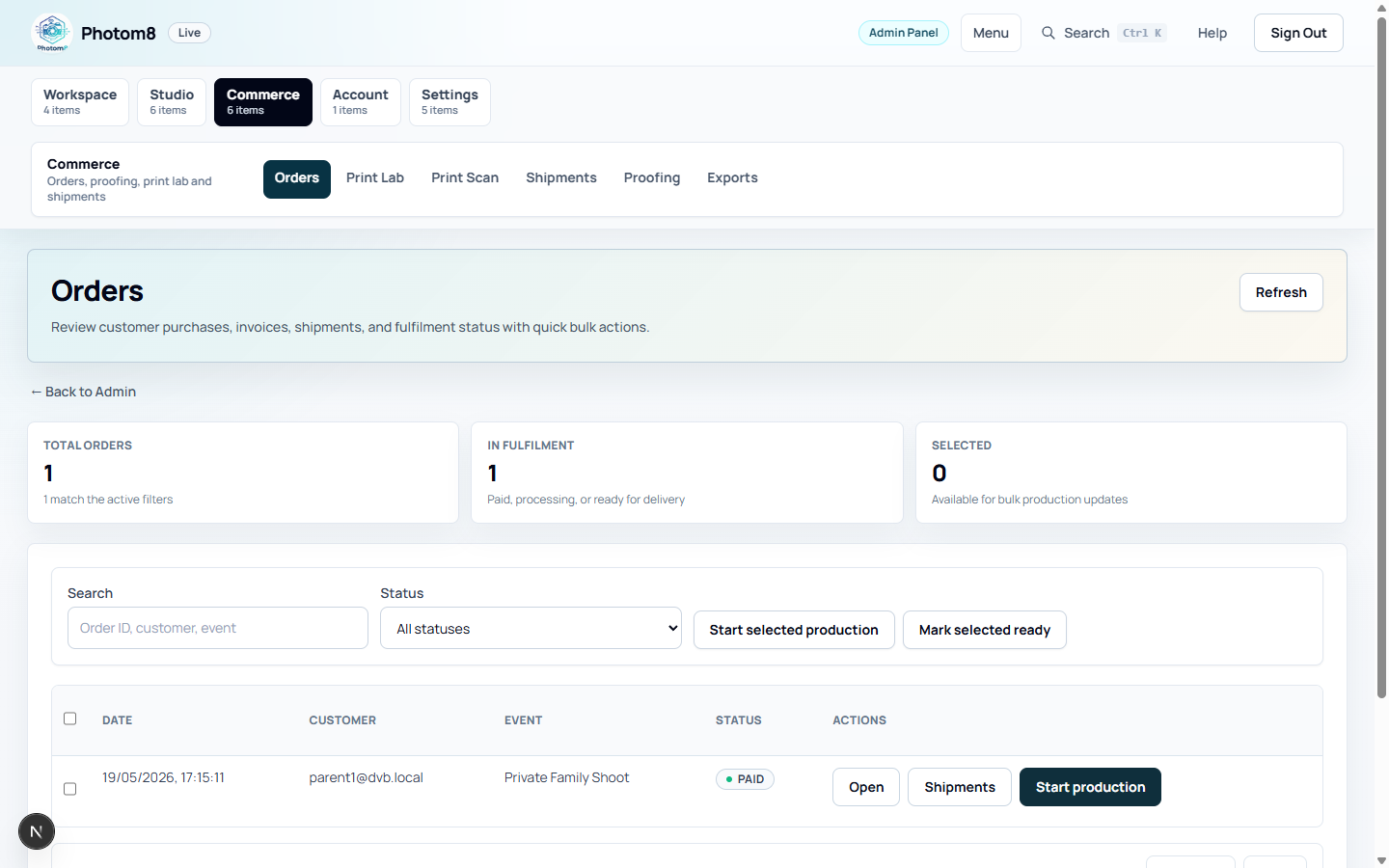
Admin orders queue
Admin Orders: staff manage payment, production and fulfilment status.

Track an Order as a Client

Clients open Orders after checkout to see status and invoice details.

/orders
Client orders list
The Orders page shows current payment and fulfilment state.

Open order details

Open /orders and click Open order. Watch the status as it moves through payment and fulfilment.

  • AWAITING_PAYMENT means payment still needs confirmation.
  • PAID means the order is accepted for production.
  • PROCESSING means staff are preparing the order.
  • READY_FOR_DELIVERY means it is complete but not delivered.
  • DELIVERED means fulfilment is complete.

Process Orders as Staff

Admins and photographers use the order queue to move paid work through fulfilment.

/admin/orders
Admin orders queue
Use Admin Orders for status updates, invoices and fulfilment actions.

Use the order queue

Open /admin/orders to search, filter, open order details, view invoices, create shipments and update status.

  • CREATED and AWAITING_PAYMENT orders still need payment confirmation.
  • PAID orders are ready to enter production.
  • PROCESSING orders are being prepared.
  • READY_FOR_DELIVERY orders are complete but not delivered.
  • DELIVERED orders unlock eligible downloads.

Avoid unsafe payment changes

Only record manual payment when payment evidence exists outside PayFast.

  • The PayFast ITN/webhook is the normal online payment source of truth.
  • A browser return from PayFast does not prove payment by itself.

Run Print Lab and Shipments

Print jobs and shipments move paid physical products through production and delivery.

/admin/print-lab

Manage physical production

Open /admin/print-lab to review jobs, filter by status, open details and send eligible work to the configured lab.

  • Use /admin/print-lab/scan for scan or lookup workflows.
  • Use job detail pages for tickets, labels, notes and status updates.
  • Confirm lab settings before sending live jobs.

Track shipments

Open /admin/shipments to filter shipments, refresh tracking, poll providers and mark delivery complete.

  • Use /admin/settings/couriers for delivery-option setup.
  • Refresh tracking before telling a client a parcel is delayed or delivered.
  • Mark delivered only after courier or internal fulfilment evidence exists.

Open Invoices and Downloads

Downloads depend on order status, event settings and product entitlements.

/orders/[id]

Check download eligibility

From the order page, view the invoice or download the PDF. Download buttons appear when the order and product are eligible.

  • Original downloads are available only after delivery and entitlement checks.
  • Design products may offer PDF and image downloads after delivery.
  • If a button is missing, check order status, item type and event download setting.

Troubleshooting

Use these checks when the workflow does not behave as expected.

A paid order still looks pending.

Likely cause
The PayFast notification may not have confirmed yet, or the payment may have been cancelled.
What to do
Check payment state before using manual payment status updates.

Downloads do not appear.

Likely cause
The order may not be delivered, the event may disable downloads, or the product may not include digital entitlement.
What to do
Open the order details and check status, event setting and purchased item type.

FAQ

When do downloads become available?

Downloads appear after the order is delivered and the purchased product includes the required digital or design entitlement.

Who updates fulfilment status?

Admins and photographers update production, ready-for-delivery and delivered status from admin order and fulfilment screens.

Where are shipments managed?

Shipments are managed from /admin/shipments and from order shipment actions after an order is ready for physical delivery.