
Gallery help

Events, Galleries and Uploads

How staff create events and upload photos, and how clients browse event galleries.

Use this guide when creating a photo event, granting gallery access, uploading photos, or browsing an event gallery.

4
Sections
3
FAQs
2
Fixes
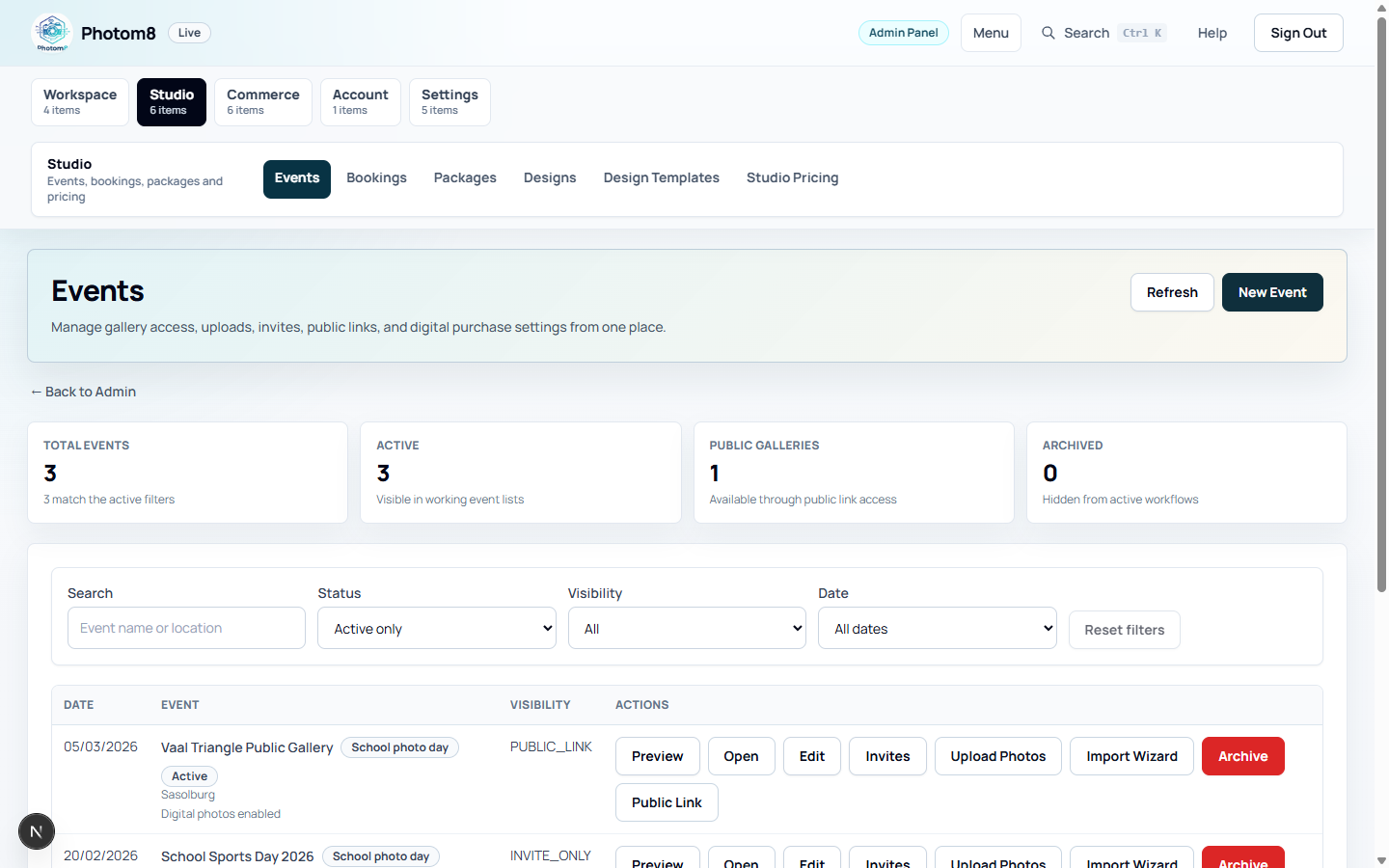
Admin event workspace
Events workspace: create events, upload photos, manage invites and open galleries.
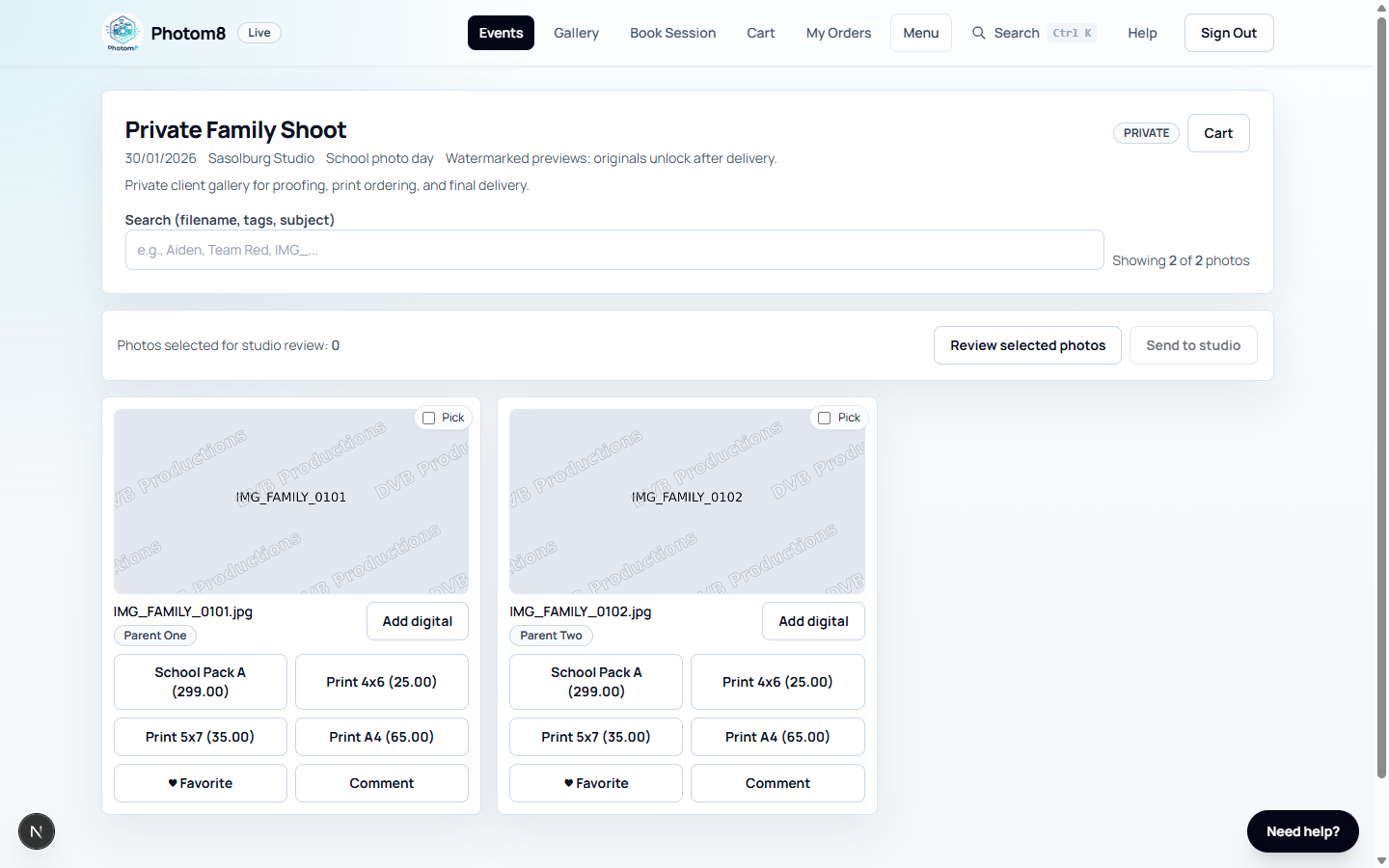
Client gallery photo grid
Gallery page: clients browse previews and choose actions for each photo.

Create an Event

Events control gallery visibility, photo uploads, invites and product availability.

/admin/events
Admin events list
The Events page groups event setup, invite handling and upload actions.

Set the event basics

Open /admin/events, click New Event, then enter name, date, location, description, event type and visibility.

  • PRIVATE events are restricted to allowed users and access records.
  • INVITE_ONLY events use recipients, invite links or access codes.
  • PUBLIC_LINK events can be opened through the public token/link.
  • Digital download settings affect later product checkout.

Prepare Gallery Access

Recipients, invite links and access codes decide who can open the gallery.

/admin/events

Send invites or issue codes

Use Invites from the event row to load recipients, choose a delivery channel, and send access to all or individual recipients.

  • Check missing parent email or WhatsApp values before sending.
  • Review sent, skipped and failed counts after each send.
  • Use Public Link only when the event is meant to be opened by public token.

Upload and Verify Photos

Staff upload originals, then verify client-facing previews.

/admin/events

Upload photos from the event

Use Upload Photos from the event row, then open the gallery and spot-check preview rendering and watermarks.

  • Photom8 stores originals privately and serves low-resolution previews.
  • Do not share private original links directly with clients.
  • Use the import wizard for roster/photo matching where the event type supports it.

Browse a Gallery as a Client

Clients use the gallery page for previewing, favoriting and choosing next actions.

/events/[eventId]
Client gallery
Client gallery actions depend on event visibility and available products.

Open the event gallery

Open the event from /events or from the invite link, then browse the watermarked previews.

  • Use Favorite to mark photos for later.
  • Use Select only when the photographer asks for proofing selections.
  • Use product buttons only when you are ready to add items to cart.

Troubleshooting

Use these checks when the workflow does not behave as expected.

A gallery opens for staff but not for the client.

Likely cause
Staff can manage the event, but the client may not have recipient/access records.
What to do
Check event visibility, recipients, access records and whether the client redeemed the code.

Uploaded photos do not show in the gallery.

Likely cause
Upload, preview generation or archive state may be incomplete.
What to do
Refresh the event, check photo status, and verify the gallery from a client account.

FAQ

Which event visibility should I choose?

Use PRIVATE for specifically assigned clients, INVITE_ONLY for invite or access-code workflows, and PUBLIC_LINK for galleries shared by public token.

Where do staff upload photos?

Staff upload from the event row in /admin/events, then verify the client gallery preview after upload.

How do clients open a gallery?

Clients open it from /events, an invite link, a redeemed access code, or a public event link depending on visibility.