
Bookings help

Bookings and Session Requests

How clients choose a session package, submit a booking request, and staff confirm or manage the scheduled shoot.

Use this guide when arranging a photo session or managing session requests in the studio calendar.

4
Sections
3
FAQs
2
Fixes
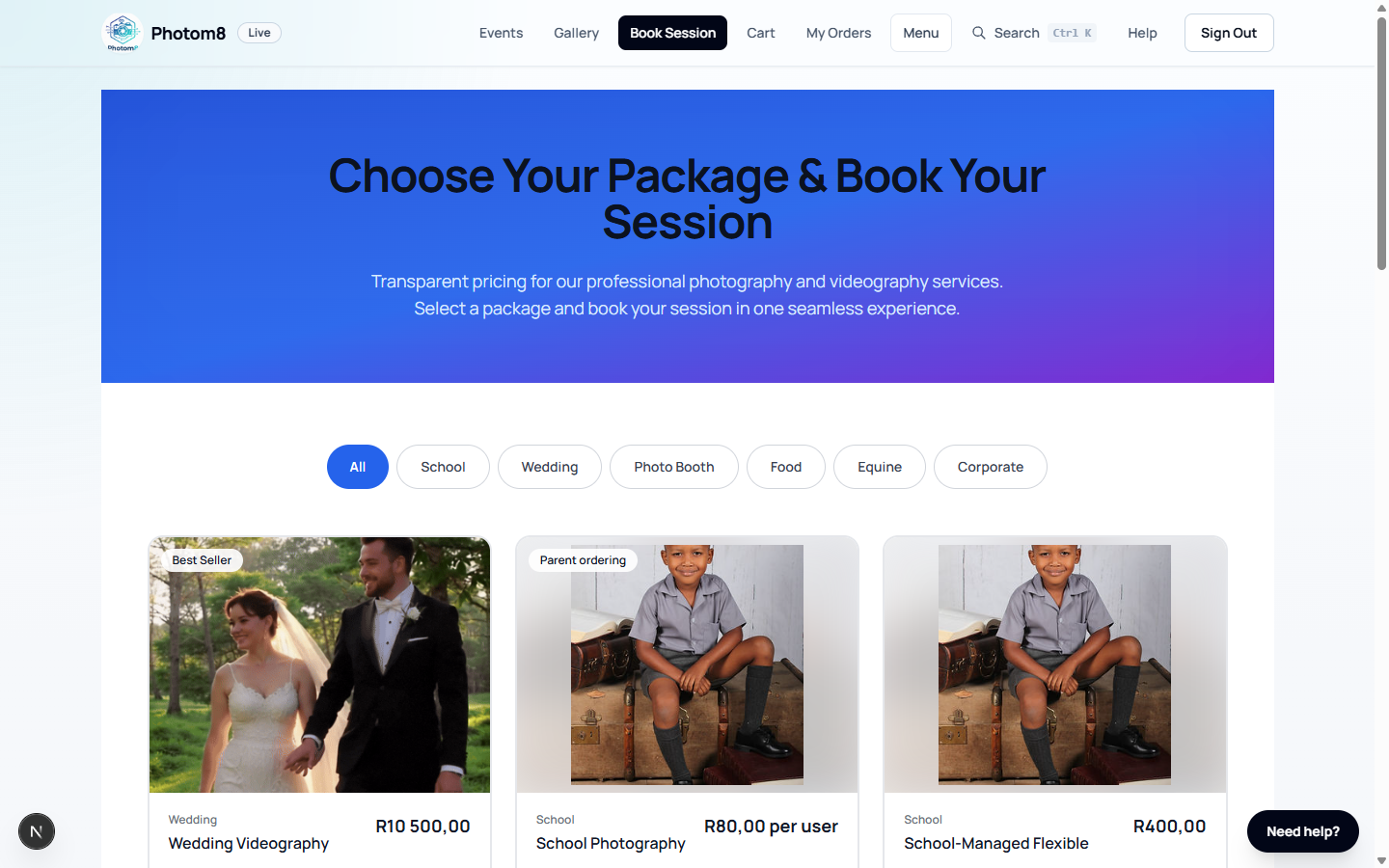
Packages page for booking a session
Packages: clients choose a session before submitting a booking request.
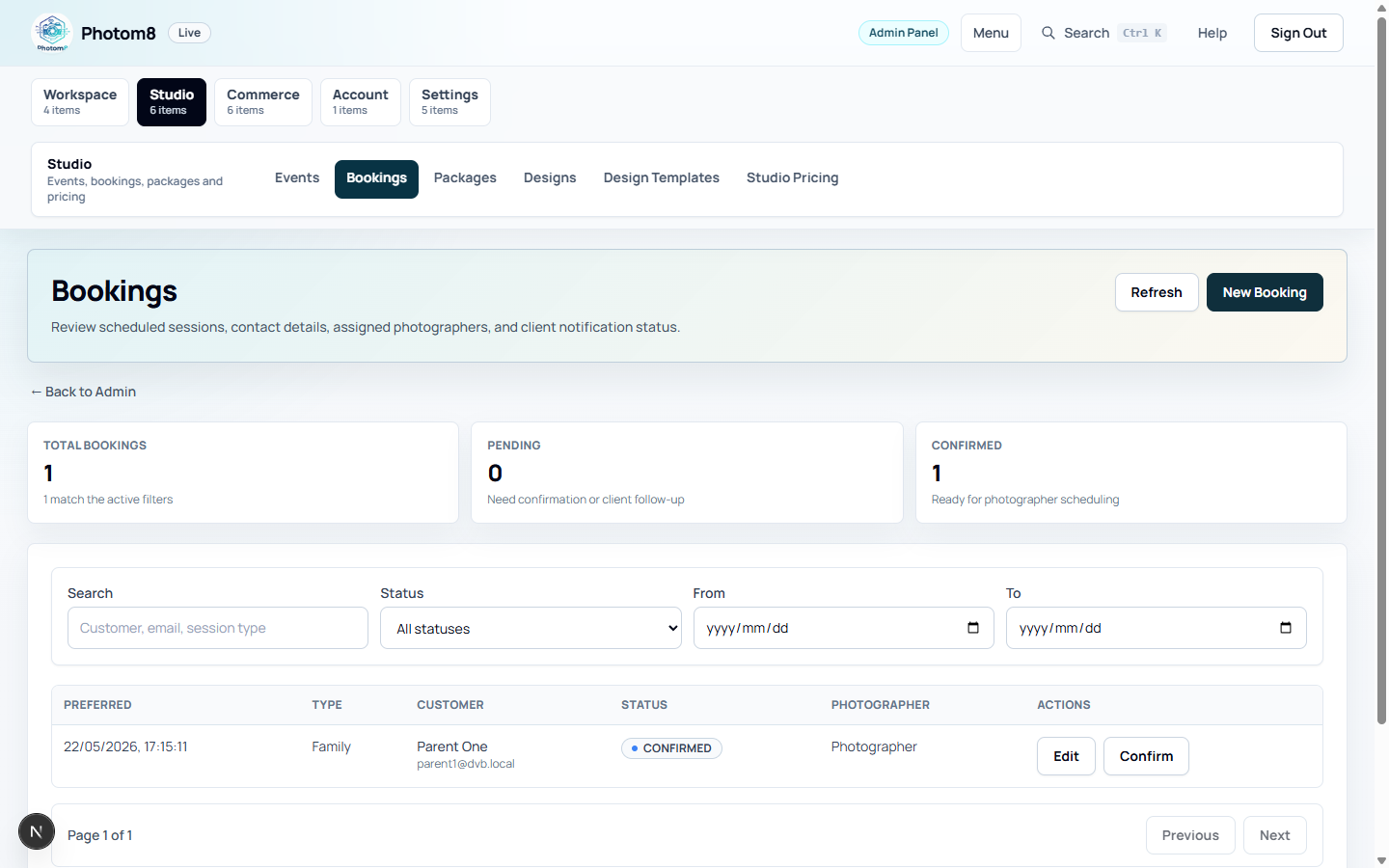
Admin bookings queue
Admin bookings: staff confirm, reschedule or complete requested sessions.

Choose a Session Package

Packages describe the session type before any booking request is submitted.

/packages
Booking package selection
Book Session opens package choices and booking entry points.

Review package details

Open /packages, compare the visible session options, and choose the package that matches the shoot you need.

  • Use package details to confirm what is included before submitting.
  • Use support chat before booking if the package does not match the shoot.
  • The selected package sets the session type and starting point for the booking form.

Submit a Booking Request

Booking requests capture client details, preferred date, location and consent.

/bookings/new

Complete the booking form

Enter preferred date/time, contact details, location and notes, then accept the model-release consent where required.

  • Location and distance details may affect quoted fees.
  • Bookings start as PENDING until staff confirm them.
  • Keep contact details accurate so the studio can confirm the session.

Review Bookings as Staff

Admins and photographers use the booking queue to confirm and manage session work.

/admin/bookings
Admin booking queue
Staff can search, filter, confirm and update booking requests.

Work the booking queue

Open /admin/bookings to search by customer, email or session type, then filter by status and date range.

  • PENDING means the booking needs staff confirmation.
  • CONFIRMED means the session has been accepted and scheduled.
  • COMPLETED means the session work is done.
  • CANCELLED means the booking should no longer be fulfilled.

Update booking details

Use Edit to change date/time, status, assigned photographer, contact details, notes and location details.

  • Use Confirm for quick approval of pending bookings.
  • Use Save and notify client when the client must receive updated details.
  • Confirm location and distance fees before committing to on-location work.

Configure Booking Setup

Booking wording, fallback booking types, consent text and distance rules live in tenant settings. Actual items being booked are Booking Packages.

/admin/settings/site

Configure the booking form

Use Bookings Config in /admin/settings/site for session request wording, field labels, consent text, business location and distance-fee rules.

  • Distance fee rules quote travel against the requested session location.
  • Fallback booking types are only used for direct bookings without a selected package.
  • Consent wording should be reviewed before public use.

Troubleshooting

Use these checks when the workflow does not behave as expected.

A client cannot find the right package.

Likely cause
The package may be inactive, filtered by category, or labelled differently from the requested shoot type.
What to do
Check /admin/packages and confirm the package title, category, price and public visibility.

A booking cannot be confirmed.

Likely cause
Required date, customer or location information may be incomplete.
What to do
Edit the booking, complete missing details, confirm assigned photographer and save.

FAQ

Where do clients start a booking?

Clients start from /packages, choose the relevant package, then continue to the booking request form.

Who confirms a booking?

Tenant staff confirm bookings from /admin/bookings after checking the preferred time, location, customer details and assigned photographer.

Where are booking labels and consent wording managed?

Admins manage public booking wording, fallback booking types, labels, consent wording, business location and distance rules from Bookings Config in /admin/settings/site. Actual bookable items are managed as Booking Packages.